You Built a Dashboard From Excel With AI. Why Can’t Your Manager Use It?
AI can turn an Excel file into an impressive dashboard, but the result often depends on copied data, a private laptop file or a local server. Your manager needs access to both the dashboard and its data. This article explains exactly why sharing fails and how to fix it.
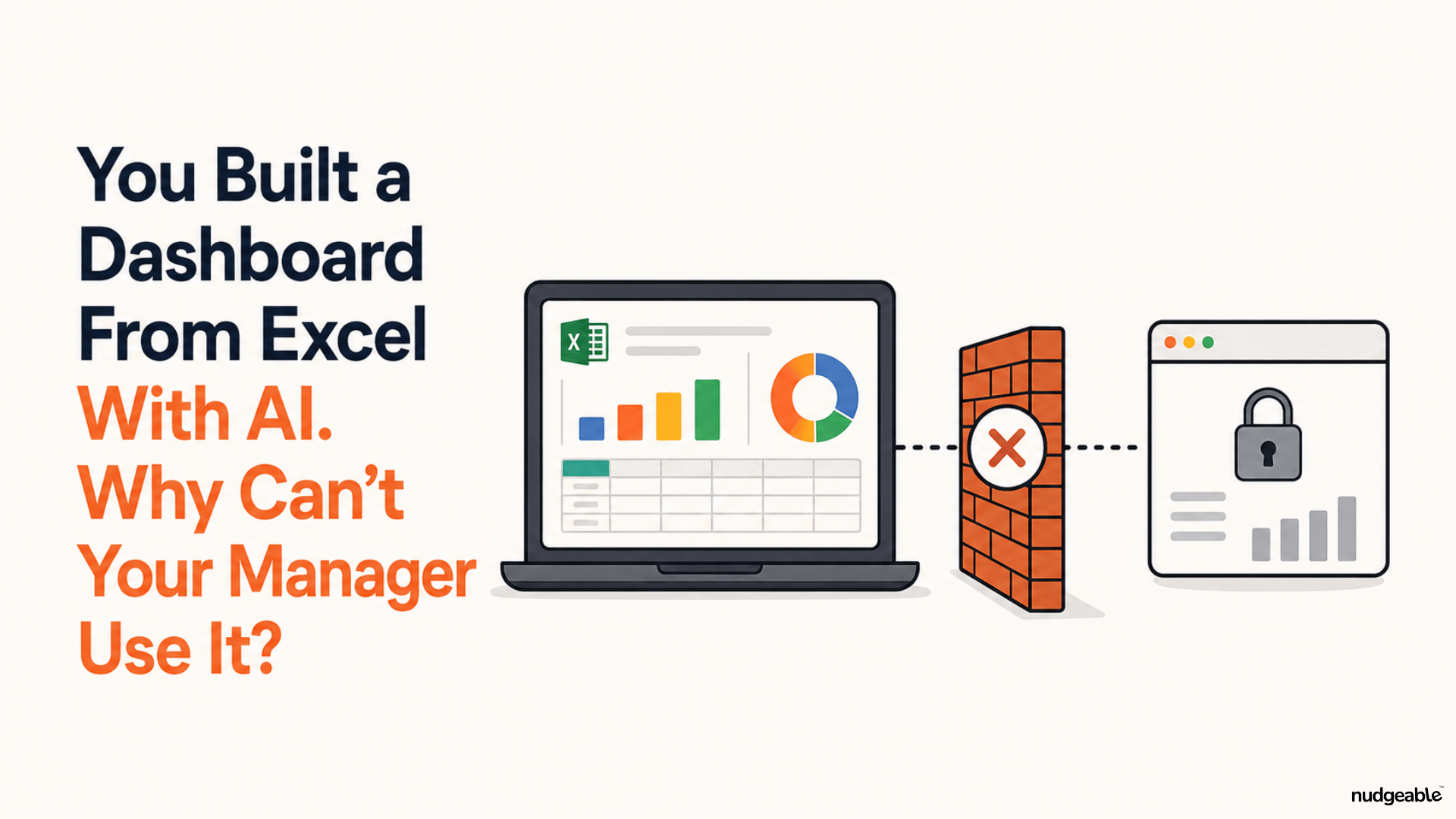
You upload an Excel file to Claude, ChatGPT, Gemini or Copilot. A few minutes later, you have charts, filters and summary cards that look like a finished application.
You send the link or HTML file to your manager, but the page is blank, shows sample data or works only on your laptop. Even when it opens, next month’s Excel file does not update the numbers.
The central problem is very specific: sharing the dashboard does not automatically share the Excel file, the file path, the local server or the process that refreshes the data.
The dashboard and the Excel file are separate
Suppose your HR workbook is stored here:
C:\Users\Gaurav\Documents\HR\monthly_data.xlsx
Claude reads the workbook and may copy its data into the dashboard code:
const data = [
{ department: "Sales", headcount: 42 },
{ department: "Finance", headcount: 18 }
];
You can click filters and see totals change, but those numbers are written inside the dashboard. The page is no longer reading the Excel workbook.
If you replace monthly_data.xlsx with a new version tomorrow, nothing happens. The dashboard has no instruction to find the new file, read it and replace the old data.
This is why an interactive dashboard may still be a static snapshot.
Four reasons the dashboard fails when shared
1. The code points to a file on your laptop
The generated code may try to read this location:
fetch("C:/Users/Gaurav/Documents/HR/monthly_data.xlsx")
That path exists only on your computer. Your manager’s browser cannot reach into your laptop. The same path on their computer would point somewhere else.
Browsers restrict webpages from opening arbitrary local files for security. A hosted dashboard therefore cannot keep watching your Documents folder.
2. The dashboard runs on localhost
A coding tool may create an application and tell you to run:
npm run devYou then open the dashboard at:
http://localhost:5173
It looks like a normal website, but localhost means “this computer”. Your manager’s browser will look for the application on their computer and find nothing.
It must be deployed to a shared or company-approved server.
3. You send only one file from a multi-file dashboard
Your AI tool may create a folder like this:
hr-dashboard/
index.html
monthly_data.xlsx
charts.js
styles.css
If you email only index.html, the page may open without its charts, design or data.
The full folder may still fail if it expects a Python or Node.js server or contains paths pointing to your laptop.
4. The webpage is shared, but its data is not
Publishing lets your manager open a URL. It does not give the page access to the Excel file used during creation.
The manager may see an empty chart, a permission error or old data. The page is shared, but its data remains private or disconnected.
What happens when next month’s Excel file arrives?
Suppose the dashboard contains January’s HR data. In February, you create HR_Data_February.xlsx and save it on your laptop.
The dashboard does not know the new file exists. It still shows the January numbers copied into its code. Saving another workbook in the same folder does not send new numbers into the dashboard.
At this point, you have three practical choices.
Three ways a non-technical user can keep sharing the dashboard
1. Create and share a new version each month
Upload the February workbook to the AI tool, ask it to rebuild the dashboard and share the new link or file. Label it clearly as HR Dashboard: February 2026 data.
Your manager receives a fixed report each month, like a new PDF or presentation. The January link will continue to show January’s numbers.
2. Publish a dashboard with an Upload New Excel File button
Here, “publish” simply means putting the dashboard at a normal web address that your manager can open even when your laptop is switched off.
When February’s data is ready, you click Upload New Excel File and select the workbook. The dashboard replaces the January numbers and updates every chart. Your manager opens the same address and sees February’s data.
The test is whether the new data is saved with the online dashboard. Some upload buttons update only your browser tab. When the page closes or your manager opens it elsewhere, the data disappears.
A proper upload process should therefore show something like:
Current file: HR_Data_February.xlsx Reporting period: February 2026 Rows processed: 1,248 Last updated: 3 March 2026, 10:12 AMTest the result by uploading the workbook, then asking your manager to open the same link on another computer. If both see February’s data, the sharing process works.
3. Ask IT to connect the dashboard to the company’s cloud file
The third option is automatic refresh. The dashboard reads the latest workbook directly from Google Drive, OneDrive or SharePoint whenever it opens.
This usually needs technical support. Someone must give the dashboard secure folder access, identify the workbook and handle changes to filenames, worksheets or columns.
If automatic refresh is important, ask your IT, analytics or Business Intelligence team to create this connection. Your requirement can remain simple:
Use one approved workbook as the source. When that workbook is updated, the dashboard should show the new data. My manager and I should see the same numbers according to our company permissions.
For most users, share a new fixed version each month or use a published dashboard where you manually upload the latest file. Choose automatic refresh when the dashboard justifies technical support.
What to ask AI before calling the dashboard finished
Ask these questions before sharing it:
Is the Excel data copied inside the dashboard code?
What exact file or storage location is the page reading?
Will localhost or any path on my laptop be required?
What happens when I upload next month’s workbook?
Where is the uploaded data stored so that my manager can see it?
What happens if a required column is missing or renamed?
Can the dashboard show the last successful refresh time?
A stronger build prompt is:
Build a hosted HR dashboard with an Upload New Excel File button. Do not hard-code the current workbook data into the charts. Validate the required columns, save the processed data in shared storage and recalculate every chart after an upload. Show the filename, reporting period, row count and last successful refresh time. Explain where the dashboard and uploaded data will be stored, what each viewer can access and what will happen if the workbook structure changes.
Before treating the dashboard as a shared tool, check where its data lives, how it receives the next file and whether your manager reaches the same stored data.