
Why Does AI Struggle With Excel Data?
AI can often summarise a long report more reliably than it can analyse a smaller Excel workbook. The problem usually begins before the calculation. AI must first work out what each cell represents, how the tables connect and which business rules apply.
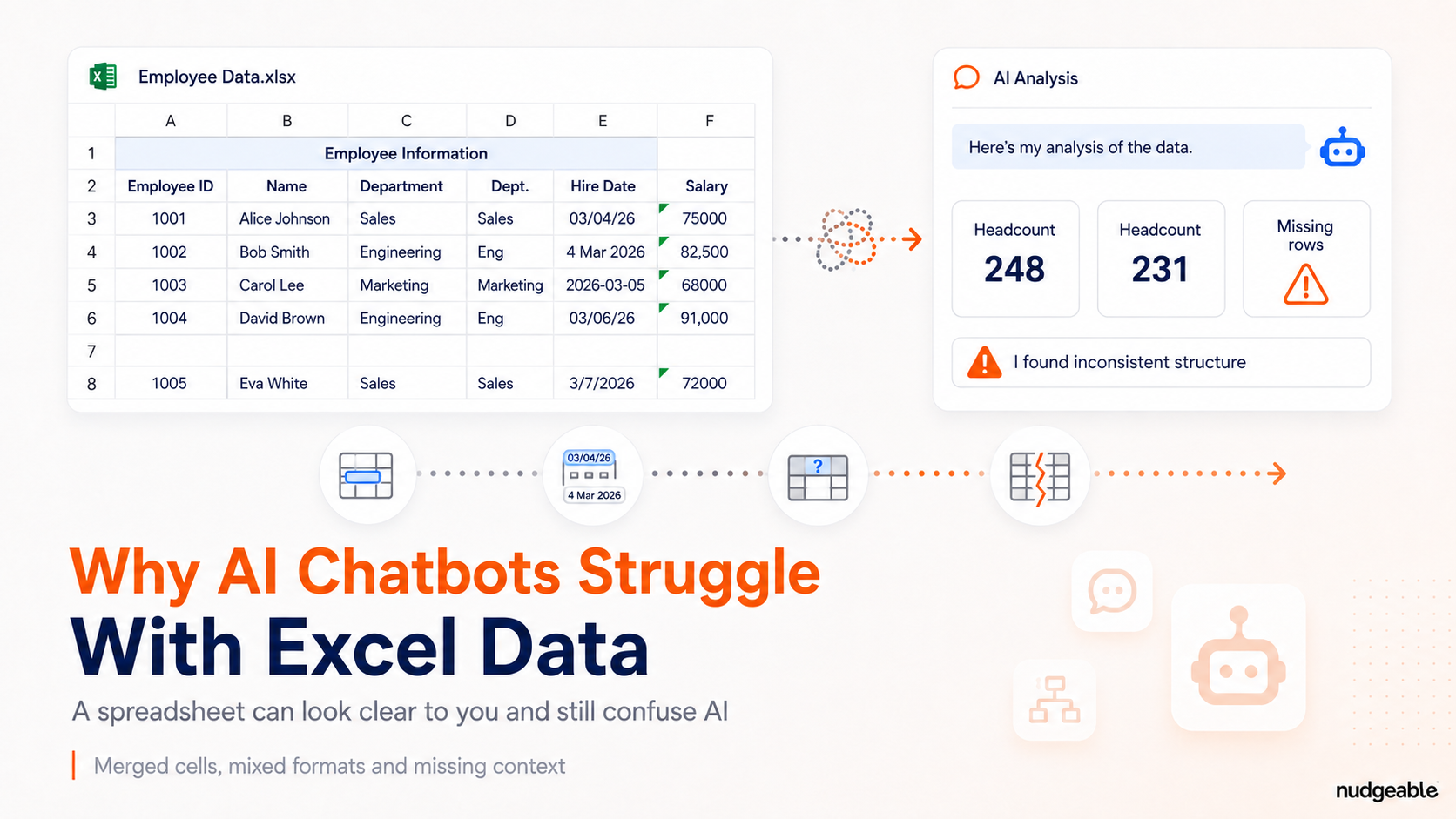
AI can often summarise a 50-page report more reliably than it can analyse a five-sheet Excel workbook. I see this regularly during AI training sessions.
The report may produce a useful summary within seconds. The Excel file may produce a polished chart with the wrong total or a missing category.
Consider cell D7 in a sales workbook. The value is 4,200. Its identity comes from the row and column labels: West region’s Q3 revenue in ₹ thousands. Its intent explains whether it is an actual figure, a target or the result of a formula.
You understand these connections by looking at the sheet. AI has to reconstruct them before it can calculate anything. If it misses one, it can perform the arithmetic correctly and still give you the wrong answer.
That is the central problem with AI and Excel.
1. Why spreadsheet meaning is easy to lose
Text usually carries its meaning inside nearby sentences. In a spreadsheet, meaning is distributed across cells, headings, worksheet names, formulas and formatting.
A merged heading may apply to four columns. A blank row may separate two different tables. A date such as 03/04/26 may mean 3 April or 4 March, depending on the company’s format.
Now imagine that 4,200 is produced by =SUM(B2:B12)*0.85. The visible number does not tell the AI that it is a calculated and adjusted total. If the formula or its purpose is missed, part of the business logic disappears.
This is why a workbook that looks clear to its creator can remain ambiguous to an AI assistant seeing it for the first time.
2. What AI does when you upload a workbook
Before analysing the numbers, the assistant first inspects the file. It identifies the worksheets, searches for headings and works out whether each column contains dates, numbers or text.
This process is often called parsing. In plain language, the AI is trying to convert your workbook into clean tables that its calculation tools can use.
Imagine an HR worksheet with a title in row 1, a headcount summary in rows 3 to 8 and employee-level records beginning in row 12. If the assistant treats row 3 as the main heading, it may analyse the summary and ignore the employee records.
The calculation has not even started, but the result is already heading in the wrong direction.
Clear column names, one record per row and separate tables reduce these structural guesses. Naming the exact worksheet and columns in your prompt helps further.
3. Why code does not guarantee the correct answer
ChatGPT, Claude, Gemini and Copilot can all analyse spreadsheet data. Depending on the assistant and mode, they may use generated code or built-in spreadsheet tools.
Python is one common route. If you ask for monthly attrition, the AI may write code that opens the workbook, excludes contractors, groups employees by month and calculates the rate.
For example:
“Calculate monthly voluntary attrition by business unit. Exclude contractors and show the employee counts used in each calculation.”
Using code gives the AI a real calculation engine. However, the code follows the AI’s interpretation of the file. If it selects the wrong date column or misunderstands who counts as an active employee, the code will apply that mistake consistently.
The maths may be correct while the analysis is wrong.
4. Three common ways spreadsheet analysis goes wrong
The first problem is treating every numeric column as a number worth analysing. An Employee ID may contain digits, but calculating its average has no business meaning.
The second problem is inconsistent units. One sheet may report revenue in rupees while another uses ₹ thousands. Adding them without conversion creates a precise but incorrect total.
The third problem is missing business definitions. Your HR team may exclude employees serving notice from “active headcount”, but the workbook may contain only the status labels and not the rule.
These mistakes can be difficult to notice because the final table or chart may still look professional. You need to check how the AI interpreted the workbook, not only whether the code ran successfully.
Five checks before you trust the analysis
1. Pair every value with clear labels
Place 4,200 in a row labelled West and a column labelled Q3 Revenue (₹000s). Avoid relying on a merged heading several rows above the data.
2. Keep important formulas visible
A margin of 34% may be a manual entry or the result of =Profit/Revenue. Keep the formula in the workbook. If you convert the file into a CSV, explain the calculation separately because CSV files retain values rather than Excel formulas.
3. Name sheets and ranges clearly
Rename Sheet1 to Employee Data and state that each row represents one employee. If you use a range called Sales_2026, explain that each row represents one invoice.
4. State the goal and business rules
“Analyse attrition” leaves too many decisions open. Use a precise request:
“Calculate voluntary attrition for Q2 by department. Exclude contractors and interns, treat employees serving notice as active, and show the counts used.”
5. Separate different tables
Avoid placing actual sales, targets and notes in different areas of the same grid. Give each table its own worksheet or a clearly named range, and remove merged cells from the data.
Before requesting the final analysis, ask:
“Show the worksheets, detected headings, column types and first five rows. Tell me which data you plan to use.”
Once the structure looks correct, request the analysis and compare two or three important figures with Excel or the original reporting system.
The most useful habit is simple: check carefully what the AI thinks your spreadsheet means before trusting what it calculates.