Where Should You Run Claude or ChatGPT: Browser, Desktop App or Phone?
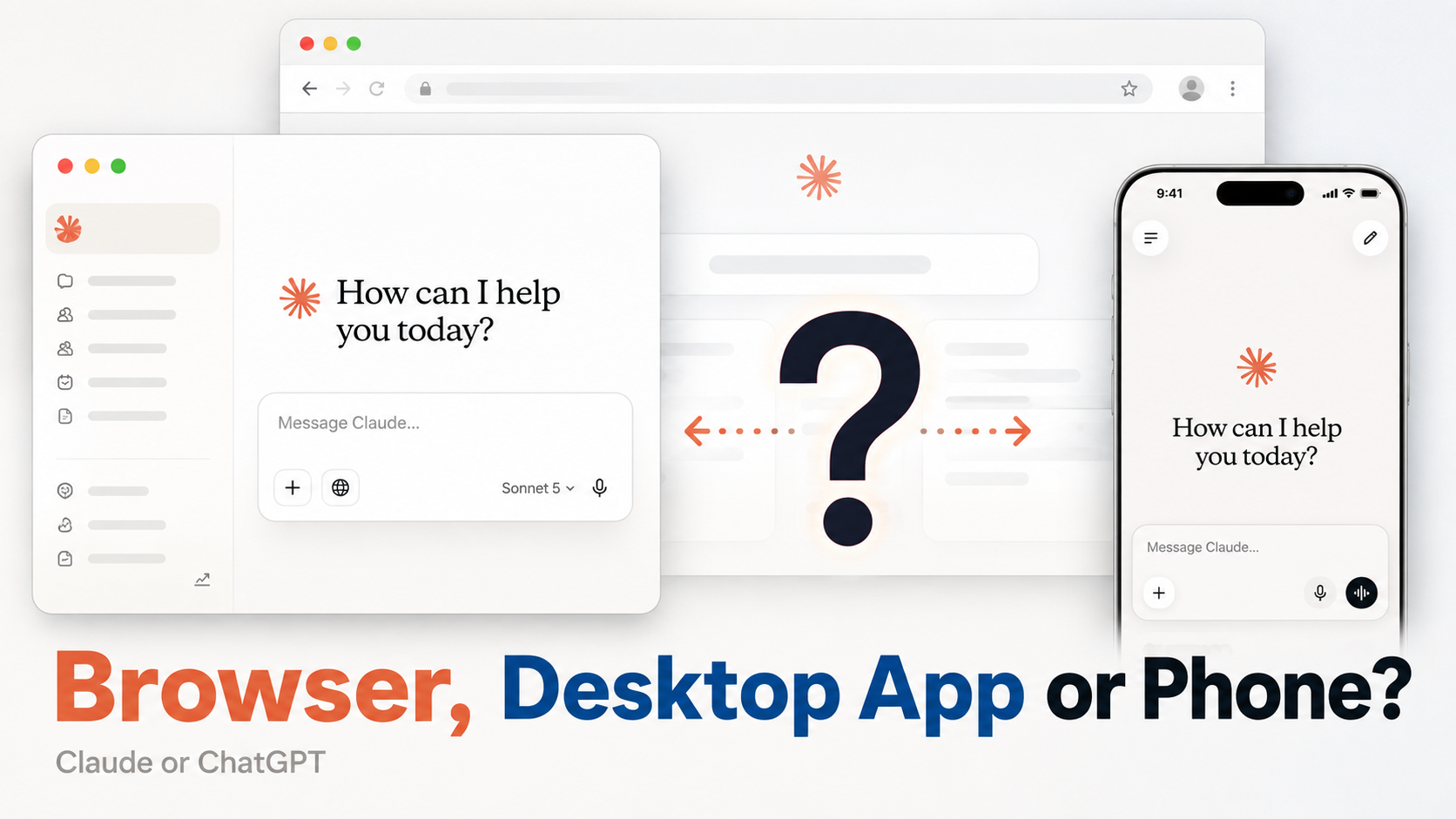
In the browser, AI works with what you give it or what it can reach online. In the desktop app, you can also give AI permission to work with things sitting on your laptop. The phone becomes useful when you are away from your desk.
Most people use Claude and ChatGPT in exactly the same way. You open a browser tab, type your question and read the answer.
I work this way too. There is nothing to install, and for most questions it works perfectly well.
But both OpenAI and Anthropic are adding capabilities that depend on where you are running the AI.
The obvious question is: when should you use the browser, desktop app or phone?
I find this distinction most useful:
In the browser, AI works with what you give it or what it can reach online. In the desktop app, you can also give AI permission to work with things sitting on your laptop. The phone becomes useful when you are away from your desk.
Everything else follows from this.
What actually changes?
1. Files sitting on your laptop: Use the desktop app
Imagine you downloaded three vendor quotations this morning and have a master spreadsheet in the same folder.
You could tell the browser:
“Update the master tracker using the three vendor quotes I downloaded this morning.”
But Claude or ChatGPT cannot simply search through your laptop and find those files. You would need to upload them yourself.
With the desktop app, you can select a folder on your laptop and give AI permission to work inside it.
It can then open the quotations, read the numbers, update the spreadsheet and save the revised file back into that folder.
The same applies to tasks such as:
“Rename these invoice PDFs using vendor name and date, then organize them by month.”
If AI needs to change the actual files sitting on your laptop, use the desktop app.
2. Working inside your computer: Use the desktop app
There is another level beyond folders.
With supported computer-use features, AI can interact with applications and screens on your laptop after you give it permission.
For example:
“Take the revenue numbers from this Excel workbook and update the chart in our quarterly presentation.”
Instead of telling you which buttons to press, AI can perform some of those actions itself by opening applications, clicking and typing.
This is what computer use actually means.
3. Working on websites: It depends on which computer AI needs
Consider:
“Go through these forty supplier websites and put their pricing into a table.”
AI can do this using a browser running on a cloud computer. Your laptop does not need to be involved.
Now consider:
“Go into our vendor portal, download last quarter’s invoices and save them into the finance folder on my laptop.”
That task also needs something on your computer.
The desktop app becomes more useful because AI can work with the website and then continue working with the local files or folders you have permitted it to use.
So website = browser is not a useful rule.
Ask yourself: does AI only need the website, or does it also need something on my computer?
4. Walking, travelling or away from your desk: Use the phone
The phone has a different advantage.
You have it with you.
You can talk to AI while walking, continue a conversation while commuting, or point the camera at something in front of you.
For example:
“Look at this warning light and tell me what it means.”
Or:
“Here is the form I have been given. Which sections do I need to complete?”
You can also use voice to think through tomorrow’s presentation while walking or travelling.
The browser, desktop app and phone can all handle normal conversations.
The phone becomes useful when you are the thing that has moved.
5. Sending work to the laptop you left behind: Phone + desktop
Claude Dispatch takes this one step further.
You can send an instruction from your phone while the actual work happens through Claude Desktop on your computer.
For example, you remember in a taxi:
“The presentation on my laptop needs the latest sales numbers before tomorrow morning.”
You can send the instruction from your phone and Claude can perform the work on the computer you left behind.
There is one condition people need to remember:
Your laptop must be awake and Claude Desktop must be running.
ChatGPT has a related capability for supported Codex sessions, but this currently applies to Codex rather than general local ChatGPT Work.
When the browser tab is still the right answer
After reading all of this, you might think everyone should install the desktop app.
I don't think so.
If you are asking questions, drafting, brainstorming, researching online or working with files you are happy to upload, the browser works perfectly well.
The same is true when your files already live in cloud systems that AI can connect to, such as Google Drive or SharePoint.
The desktop app becomes more useful when you repeatedly find yourself doing things like this:
AI gives you an answer, you download it, open the real file, copy information across and save it somewhere else.
At that point, giving AI permission to work directly with the relevant folder or application can remove several manual steps.
Reducing the friction
One reason people stay in the browser is simple: the tab is already open.
Both companies have tried to remove that advantage.
On a Mac, Option + Space can open ChatGPT from anywhere on your computer.
Claude Desktop has Quick Entry. Double-tap the Option key and you can open Claude without first finding the application.
Once you build that habit, reaching the desktop app can be quicker than finding the correct browser tab.
The rule
Ask yourself one question:
Where is the thing AI needs to work with?
If it is online, the browser is usually enough.
If it is sitting on your laptop, use the desktop app and give AI permission to the relevant folder, file or application.
If you are away from your desk, use the phone.