When Should You Use Chat or Work?
When Should You Use Chat or Work? Claude Cowork and the recently launched ChatGPT Work have created a new kind of confusion. When Claude Cowork was available only through the Cl…
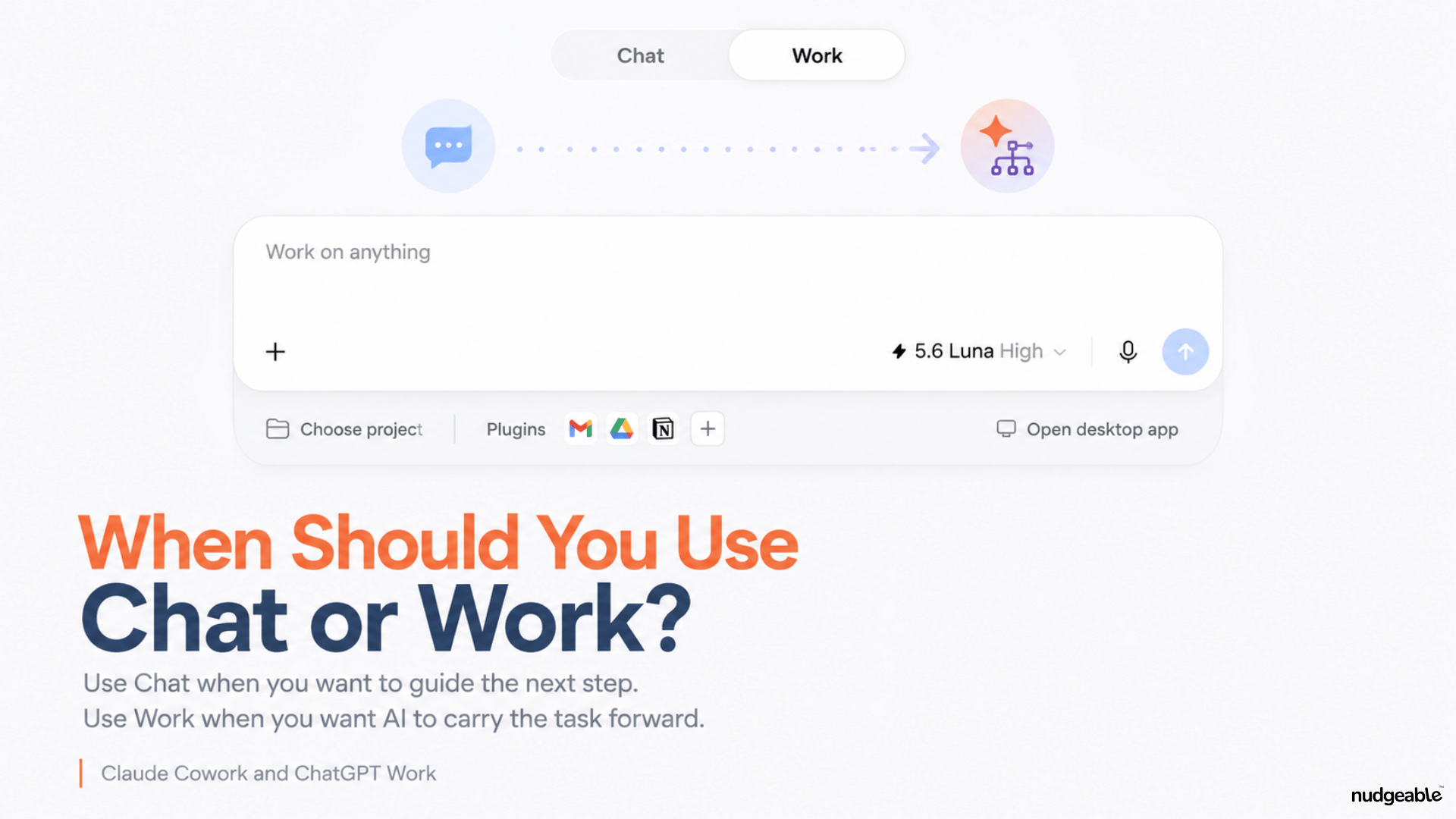
Claude Cowork and the recently launched ChatGPT Work have created a new kind of confusion.
When Claude Cowork was available only through the Claude desktop app, the difference was easier to understand. Chat was where you had a conversation. Cowork was where Claude worked with files and folders on your computer.
That separation is disappearing. Cowork is now available on the web, and ChatGPT has added Work alongside Chat. We now have two options that look similar and can perform many of the same tasks.
In this article, I will use Work to refer to both ChatGPT Work and Claude Cowork.
The obvious question is: when should I use Chat, and when should I use Work?
OpenAI’s official answer is:
Use Chat when you want an answer, explanation, brainstorm, or short draft. Use ChatGPT Work when you want ChatGPT to complete a task with a clear outcome, such as a brief, deck, analysis, recurring update, workflow, or file you can review and use.
I find that distinction almost entirely useless because I have been using regular ChatGPT Chat for most of these tasks for years!
Chat can already analyze files, search the web, use connected apps and create briefs, presentations and other usable files.
The examples tell us what Work can create. They do not explain what Work actually does differently.
After comparing how both modes operate, I found a more useful distinction:
In Chat, you decide what happens next. In Work, the AI decides what to do next based on the goal you have assigned.
What actually changes?
1. Interaction
Chat responds to your prompt and waits. Work continues through multiple steps.
2. Who drives?
You decide the next question or instruction in Chat. In Work, AI plans and performs the next steps.
3. Local folders
Chat uses the files you upload. Work can directly access approved folders through the desktop app.
4. File operations
Chat can create a file or suggest changes. Work can edit, rename, move and organize files.
5. Browser actions
Chat can search and read web information. Work can open pages, click, type and complete forms.
6. Parallel work
Chat follows one main conversation. Work can divide the task between multiple agents.
7. Usage
Chat is usually quicker and uses less capacity. Work usually runs for longer and consumes more usage.
The same prompt usually runs for longer in Work
If you enter the same prompt in Chat and Work, the experience can be quite different.
Chat will typically analyze the request, produce a response and wait for your next instruction.
Work may create a plan, use several tools and inspect what it has produced. It can decide that another step is required and continue working before sharing the result.
After creating a presentation, for example, it may open the file, notice a formatting issue and revise the slides. After analyzing data, it may run another check because some numbers do not match.
This is why Work usually takes longer and consumes more usage. The additional time allows the AI to perform more actions, although it does not guarantee that the final output will be correct.
Three principles for choosing the right mode
1. Are you asking a question or assigning a task?
Use Chat when the main output is an answer, explanation, opinion or recommendation.
Use Work when understanding the request is only the beginning. The AI must then perform a series of actions before the task is complete.
2. Who should decide the next step?
Use Chat when you want to guide the process through a conversation. You decide what to ask next, which direction to explore and when the answer is good enough.
Use Work when you can describe the goal and allow the AI to decide the sequence. It chooses which sources to review, which tools to use and what needs to happen before the task is complete.
You can still interrupt or redirect it, but you do not need to provide every next instruction.
3. How much execution is involved?
Use Work when the request requires AI to move across several files or systems and perform multiple actions.
This includes working through a folder, controlling a browser, combining information from connected tools or making changes across several files.
A difficult question can still belong in Chat. Work becomes more useful when the answer must be followed by substantial execution.
Examples by mode
1. Use Chat: Brainstorm a product launch
Prompt: “Suggest ten names and campaign angles for our new HR product.”
You want ideas that you can discuss and refine.
2. Use Chat: Understand a contract clause
Prompt: “Explain this limitation-of-liability clause and identify the main risk.”
The required output is an explanation. Once Chat answers, the request is complete.
3. Either can work: Create a presentation
Prompt: “Create a ten-slide presentation on our HR strategy using these notes.”
Chat can build it with you through feedback. Work can take the same request and carry it through as a longer assignment.
4. Use Work: Prepare for a client meeting
Prompt: “Review the client’s recent emails, CRM activity and project documents. Update the account presentation and save the finished deck.”
AI must gather information from several systems and modify an existing file.
5. Use Work: Reconcile multiple reports
Prompt: “Check the latest finance, sales and operations reports, identify mismatched numbers and update the master spreadsheet.”
AI must inspect several files, compare the numbers, find errors and edit the existing spreadsheet.
The handoff rule
Downloading a file or copying a response can be a useful signal, but it is not a reliable rule on its own.
Ask yourself what should happen after AI provides its first answer.
If you want to read the answer and decide the next question, stay in Chat.
If you want AI to keep going, work across files or systems and return with the completed result, switch to Work.
Use Chat when you want to drive the conversation. Use Work when you want AI to carry the task forward.